How to generate a Dentrix Deposit Slip as an Excel spreadsheet or CSV
Last updated: April 16, 2026 by Jason Shah
The Dentrix Deposit Slip is one of the most important end-of-day reports in a dental practice. It helps you reconcile what was collected (cash, checks, credit cards, EFTs, and insurance payments) so your front desk can confidently match Dentrix to the cash drawer, card terminal totals, and bank deposit.
In many offices, the Deposit Slip is also used for auditing. For example, you may want to generate several months of deposit slip (transactional) data in a single report, and then audit all of those by hand or with a tool.
While Dentrix can generate the Deposit Slip as a PDF, it is not ideal for analysis or sharing with your accountant. In this guide, we will walk through how to generate the Dentrix Deposit Slip PDF, and then convert it to Excel or CSV using Dentrix Report Converter.
Step 1: Open the Deposit Slip report in Dentrix
Launch Dentrix and log in with a user with sufficient permissions to generate reports.
Open Office Manager.
From the top menu, go to Reports > Management > Day Sheet (Charges and Receipts).
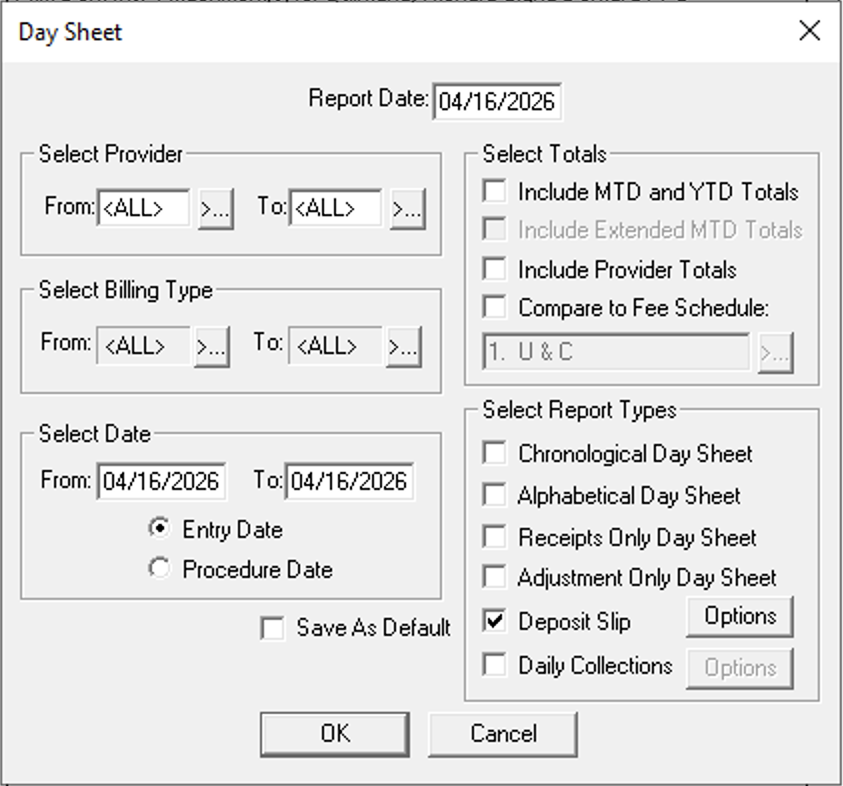
In the Day Sheet dialog, check the Deposit Slip option.
Step 2: Configure the report settings
Use the settings that match your workflow, but these are common defaults for most practices:
- Deposit Slip: must be checked, or you will actually generate a Day Sheet instead.
- Date range: enter the date range for from and to dates. Note that Dentrix Report Converter requires number of pages in the output to be 30 or less. We've found that a $1M/year practice can typically generate a Deposit Slip with around 3 months of data and stay within 30 pages.
- Date type: choose Entry Date if you want what was posted that day, or Procedure Date if your office back-dates transactions and you need to match procedure dates.
Once configured, click OK to generate the report.
Step 3: Preview the report and save it as a PDF
The report will appear in the Batch Processor. Find it and double-click to open it.
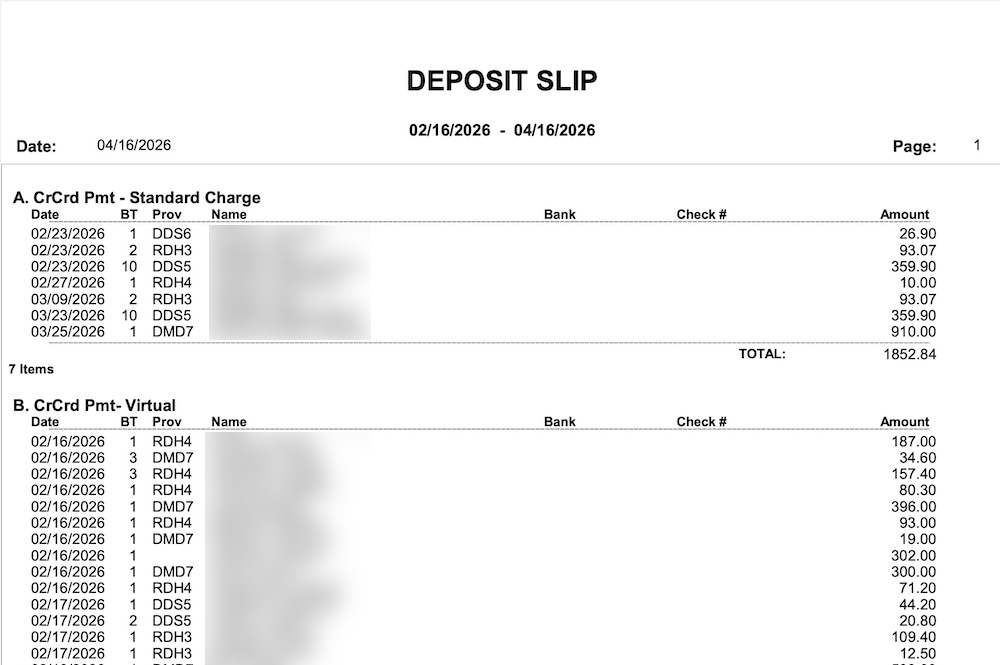
You will be taken to the Dentrix Print Preview screen. Your Deposit Slip should look similar to this:
Tap on File > Print.
Look for a printer that says something like "Print to PDF", and choose that one. That printer will allow you to "print" the report to a PDF file on your computer.
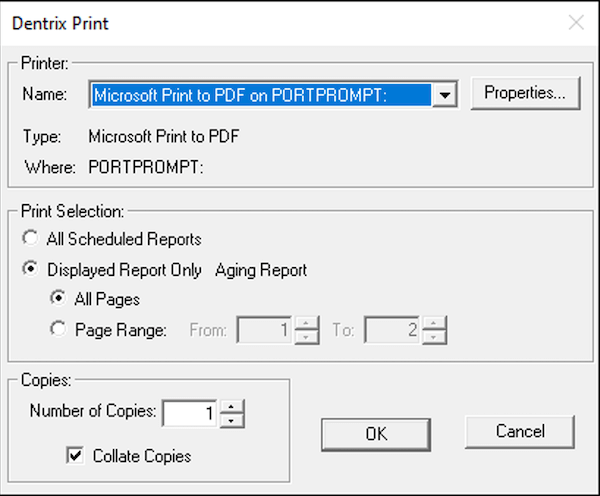
Click on OK and save the PDF to your computer.
Step 4: Convert the Deposit Slip PDF to Excel or CSV
Log into your Dentrix Report Converter Dashboard.
Drag the PDF into the upload area.
Tap Upload and Convert.
Within seconds, you will receive a link to download your Deposit Slip in Excel. From Excel, you can also export it to CSV or upload it to Google Sheets.
Once converted, you can use the spreadsheet to reconcile deposits, spot inconsistencies (like missing checks), and share clean totals with your accountant or bookkeeper.