How to generate an Excel spreadsheet of a Dentrix Credit Balance Report
Last updated: January 2025 by Jason Shah
Tracking patient credit balances is important for maintaining accurate financial records in your dental practice. A Credit Balance Report helps office managers, consultants, accountants, and practice owners identify patient overpayments or credits that need to be refunded or applied to future visits. Dentrix provides a powerful tool to generate this report efficiently.
But, the report that Dentrix provides is not in a format that is easy to use. You can't easily sort, annotate, filter, or analyze the data in a PDF. Furthermore, the "Print to File" option in Dentrix is broken for reports like this.
We have you covered, however. Dentrix Report Converter makes it effortless to convert the report to Excel, CSV, or Google Sheets.
In this guide, we'll walk you through the exact steps to create a Credit Balance Report in Dentrix, and then how to convert it to Excel or Google Sheets using Dentrix Report Converter.
Step 1: Open the Aging Report in Dentrix
Launch Dentrix and log in with a user with sufficient permissions to generate reports.
Open Office Manager.
Click on Reports (from the toolbar) > Ledger > Aging Report.
A dialog box will appear, allowing you to configure the report settings.
Step 2: Configure the Report Settings
To generate the Credit Balance Report, use the following recommended settings:
- Select only Credit Balances from the Select Report Type checkboxes
- Choose your other options as needed for your analysis
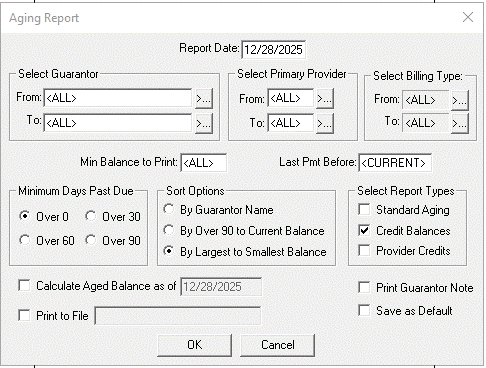
Once configured, click OK.
Step 3: Open and Save the report as PDF
The report will appear at the bottom of the Batch Processor, named Credit Balance Report. Double-click on it.
You will be taken to the Dentrix Print Preview screen.
Tap on File > Print.
Look for a printer that says something like "Print to PDF", and choose that one. That printer will allow you to "print" the report to a PDF file on your computer.
Click on OK and save the PDF to your computer.
Step 4: Convert the report with Dentrix Report Converter
Log into your Dentrix Report Converter Dashboard.
Drag the file into the upload area
Tap "Upload and Convert"
Within seconds, you will receive a link to download your report in Excel. You can also upload this Excel file to Google Sheets to continue your analysis if you prefer to use Google Sheets instead.
Once the report has been converted, you can now use it to manage patient credit balances, process refunds, or apply credits to future visits.
We will convert the first five rows of your document for free so you can verify it works.